
Current book
In-reader controls, dashboard cards, highlight navigation, per-book format overrides, and metadata management in KOReader.
☰ menu → Tomedown → Current book, available whenever a book is open:
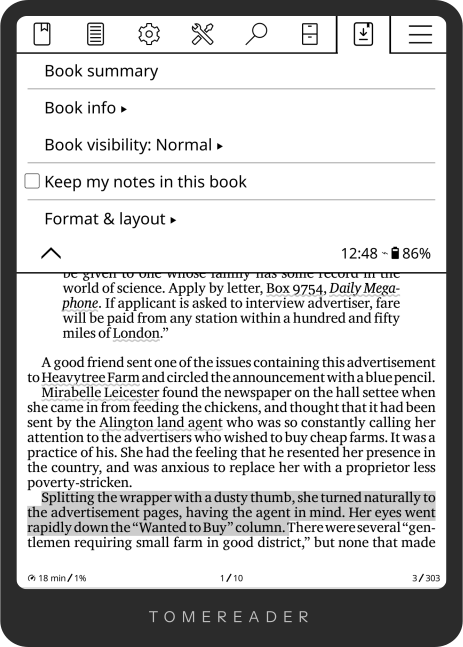
While Menu & Settings configures global defaults applied across your entire library, Current book controls the volume currently open on your screen. Here you can inspect your reading session, jump across quotes, override export formats, manage book info, and edit notes directly inside KOReader.
Current book menu reference
| Entry | What it does |
|---|---|
| Book summary | First entry in the menu: opens the rounded e-ink dashboard card showing book metrics, 3 interactive KPI counters, effective format, tags, and export status (see Book summary) |
| ★ Special highlights | Displayed when starred highlights exist in the book (with the count on the right): opens the in-device card browser to review standout passages |
| Book info ▸ | Opens the book info submenu to import KOReader ratings, reviews, reading dates, collections, or manage per-book tags (see Book info) |
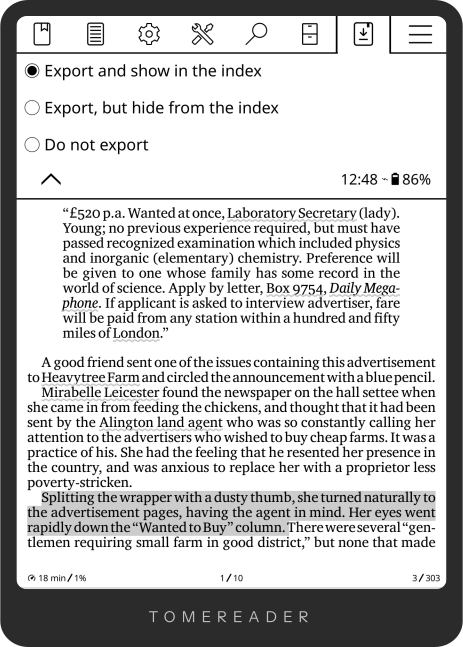
| Book visibility: %1 ▸ | Opens a 3-option radio submenu: Export and show in the index (Normal), Export, but hide from the index (Hidden from index), or Do not export (Not exported) |
| Keep my notes in this book | Enables Keep my notes specifically for this volume without turning it on for all books. If turned off later, Tomedown asks first and preserves an automatic .bak copy before reverting to plain exports |
| Notes heading: %1 | Displayed when Keep my notes is active for this book: tap to set a custom Markdown heading (e.g. ## My thoughts) above the generated body |
| Backup copies ▸ | Displayed when .bak snapshots exist for this book: opens a submenu to view real file dates and safely delete stale backup files |
| Format & layout ▸ | Overrides global style and layout settings (export format, Markdown style, notes format, details, headings, context, covers, bookmarks, handwritten notes, and Book page modules) specifically for this book (see Format & layout overrides) |
Book summary dashboard card
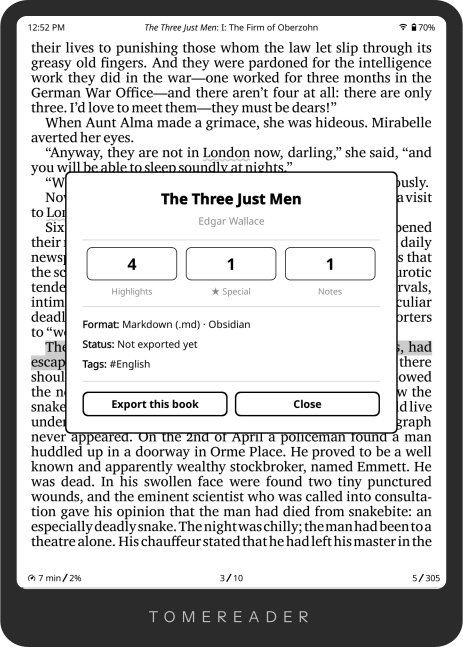
Under Tomedown → Current book → Book summary, Tomedown opens a rounded dashboard card built specifically for e-ink displays:
What the card displays
- Book Title & Author: Extracted cleanly from the document metadata.
- 3-Column KPI Buttons:
- Highlights: Total count of all highlighted passages in the book.
- ★ Special: Count of standout passages marked with Special highlight.
- Notes: Count of highlights that have personal user notes attached.
- Format: Shows the effective export format and Markdown style for this book (e.g.
Markdown (.md) · Obsidian,Markdown (.md) · Standard, orMarkdown (.md) · CommonMark). - Status: Indicates the export state:
Up to date: Exported file matches your latest highlights and reading position.Updates pending: New highlights, notes, or reading progress await the next export.Not exported yet: Book has not been exported to disk yet.- Action Buttons:
- Export this book: Immediately exports the open book, extracts covers or drawings if enabled, and uploads the note if cloud sync is configured.
- Close: Closes the card and returns smoothly to your reading session with full screen repaint.
Highlights, ★ Special & Notes card browser
Tapping any of the three KPI buttons in Book summary (or selecting Current book → ★ Special highlights) opens the paginated card browser for your annotations:
- Highlights KPI: Browses all extracted quotes and passages from the book.
- Notes KPI: Displays only passages that contain personal annotations.
- ★ Special KPI: Displays all passages you have marked as favorites.
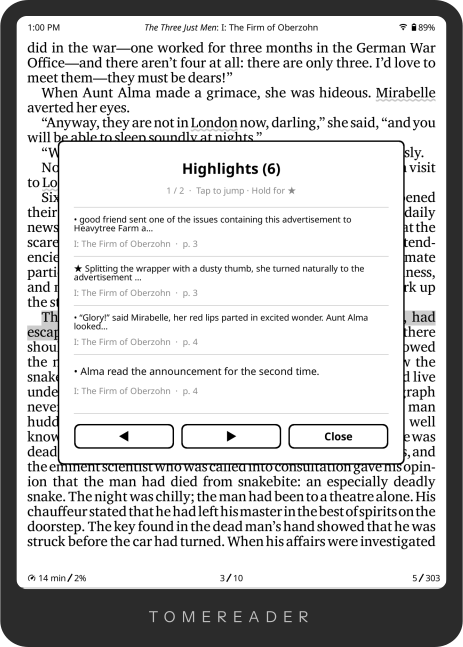
The card browser allows you to review and manage your annotations without leaving your reading session. Designed for 6-inch e-ink screens, it features pagination controls (◀ / ▶) showing 3 to 4 items per page.
Gestures & Shortcuts
| Action | Highlight / ★ Special cards | Notes card |
|---|---|---|
| Short tap | Jump to passage: Instantly navigates to the highlighted location in the book (GotoXPointer on reflowable EPUBs, GotoPage on PDFs) |
Jump to passage: Navigates directly to the page and sentence where the note was recorded |
| Long-press | Toggle ★ Special: Star or unstar the passage in place without leaving the card. The change is persisted immediately to KOReader's .sdr file |
Edit note: Opens KOReader's InputDialog showing your existing note. You can edit the text, append thoughts, or clear it completely |
Format & layout overrides
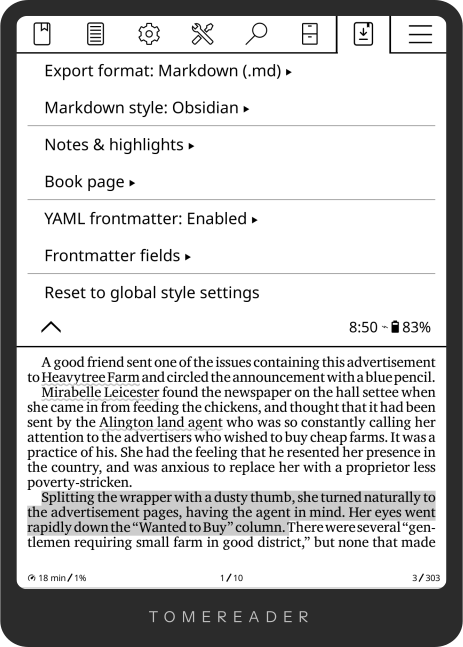
By default, every book follows your library-wide defaults configured in Settings → Notes & highlights and Settings → Export. Under Current book → Format & layout, you can customize settings for a single volume without affecting the rest of your library:
Available overrides
Every row inside Current book → Format & layout displays Global on the right while following your library defaults, or Custom when pinned specifically for this book—and every submenu starts with Follow global setting so you can restore individual options at any time:
- Export format: Choose between Follow global setting, Markdown (.md), Plain text (.txt), or Both (.md and .txt).
- Markdown style: Select Follow global setting, Obsidian (wikilinks,
[!...]callouts,^hl-block IDs), Standard (GitHub / HTML) ([Title](file.md)links,<details>synopses,<img>covers), or CommonMark (no HTML) (strict zero-HTML output with compact260×390 pxcovers and###+>synopses for Zettlr, Pandoc, and Logseq). Hidden automatically when Export format is.txt. - Notes & highlights ▸: Full per-book parity with Settings → Notes & highlights:
- Special highlight style: Choose any of the 6 highlight styles (
[!highlight],[!IMPORTANT],==text==,==**text**==,⭐ **text**, or**text**) for this volume. - Highlight details: Page and date, Page only, Date only, or None. - Highlight context: Enable or disable surrounding sentence extraction (ideal for study essays and textbooks). - Link IDs on highlights: Enable or disable^hl-xxxxxxxxblock anchors for this book alone. - Every highlight is special: Render every highlight in this book with your special marker. - Personal notes format: Inline, Callout ([!note]), or Footnotes ([^1]). - Chapter headings: Heading 1, Heading 2, Heading 3, or None (continuous list). - Page bookmarks & Handwritten notes: Enable or disable bookmarks and stylus vector SVG extraction (drawings/*.svg) for this book. - Book page ▸: Full per-book parity with Settings → Notes & highlights → Book page:
- Book title in body, Book cover, and Overview style (
Inline / Heading,Classic blockquote,Callout ([!summary]), orTable). - Reading dashboard, Book synopsis (revealing Synopsis display only while active—so you can disable the synopsis on an academic essay while keeping it on novels), Tags in body, and Special highlights showcase. - Section styles ▸: Override Harmonize book styles and Book style (Minimal symbols, Emoji, Code badges, or Editorial), or customize individual module styles for this book. - YAML frontmatter & Frontmatter fields ▸: Enable or disable YAML frontmatter, hide individual YAML keys, add book-specific custom fields (e.g.
course: Philosophy), or set a custom key order. - Reset to global style settings: Removes all per-book overrides and restores global defaults with a single tap.
Selecting Markdown style for a book
When you select Standard (GitHub / HTML) or CommonMark (no HTML) for a book, Tomedown automatically adapts the generated note:
- Callouts ([!book], [!abstract]-, [!highlight]) become clean Markdown headings (### Reading dashboard, ### Book synopsis, ### ★ Special highlights).
- Obsidian wikilinks switch to standard [Title](file.md) and ^hl-xxxxxxxx block IDs are omitted.
- Obsidian-specific style options (such as Callout ([!summary]) in Overview style or Callout ([!note]) in Personal notes format) automatically fall back to universal Markdown for that volume.
- Choosing CommonMark (no HTML) additionally strips all inline HTML (<details>, <img>, <br>) and extracts a compact 260×390 px cover image sized for pure  renderers; switching back to Obsidian or Standard automatically re-extracts the full 800×1200 px cover on the next export.
Book info & Metadata
Under Current book → Book info, you can enrich your book note with extended metadata tracked by KOReader:
- Import book info: Reads the volume's rating (1–5 stars), personal review text, reading dates (
date_started,date_finished), reading status (reading,complete,abandoned), and KOReader collections into the note's YAML frontmatter. - Tags: %1: Assign custom tags to this specific book. Assigned tags appear under the title in
00 - Index.md, in frontmatter, and inside the book note. - Delete tags…: Delete obsolete tags across your library and clean up the suggestion cache.
To automate metadata imports across all your books, see Settings → Book info → Update book info automatically.
Book visibility & Keep my notes
Book visibility radio submenu
Under Current book → Book visibility, choose one of three radio options:
- Export and show in the index (Normal): the book is exported and listed in
00 - Index.mdand00 - Reading Digest.md. - Export, but hide from the index (Hidden from index): the book note is exported to disk, but omitted from
00 - Index.md. - Do not export (Not exported): instructs Tomedown to ignore this volume during library-wide exports and omit it from both
00 - Index.mdand00 - Reading Digest.md.
Per-book Keep my notes
If you want to write personal summaries or commentary directly inside certain Markdown notes while keeping plain, automated exports for others:
- Open the book in KOReader.
- Tap Tomedown → Current book → Keep my notes in this book.
- Tomedown writes a protected
## My notes... <!-- tomedown:notes -->zone at the top of the file. - Any thoughts you type above the body zone in Obsidian or your text editor will remain intact on every future export from KOReader.
If you ever disable Keep my notes for the book, Tomedown creates an automatic .bak copy of your note before switching back to plain exports, ensuring your manual thoughts are never lost.