Templates, Folders & Index
Tomedown gives you full control over where files land, how they are named, how 00 - Index.md looks, and which file formats are generated.
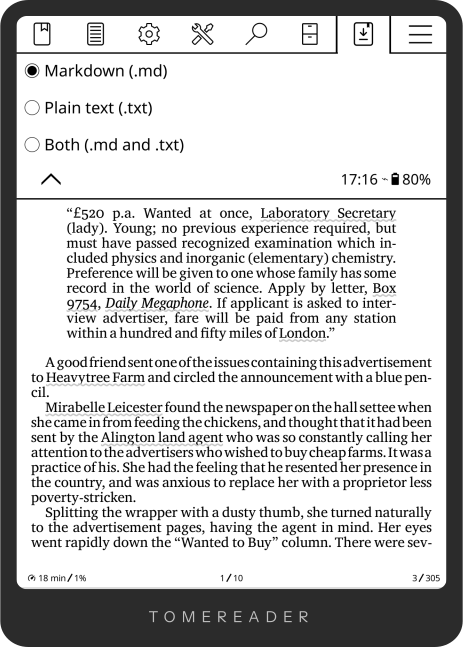
Export format (.md and .txt)
In Settings → Export → Export format, choose:
- Markdown (.md) (default): full Markdown with YAML frontmatter, headings, and callouts.
- Plain text (.txt): clean, human-readable text without YAML or HTML.
- Both (.md and .txt): keeps both files in sync side by side.
When you switch between .md and .txt, Tomedown automatically manages the old and new files on the next export so you never end up with stale duplicates. When Plain text (.txt) is selected, Markdown style is disabled automatically with the note Not used with .txt.
File names & folders
All naming and directory structure options are grouped cleanly under Settings → Export → File names & folders:
1. File name template
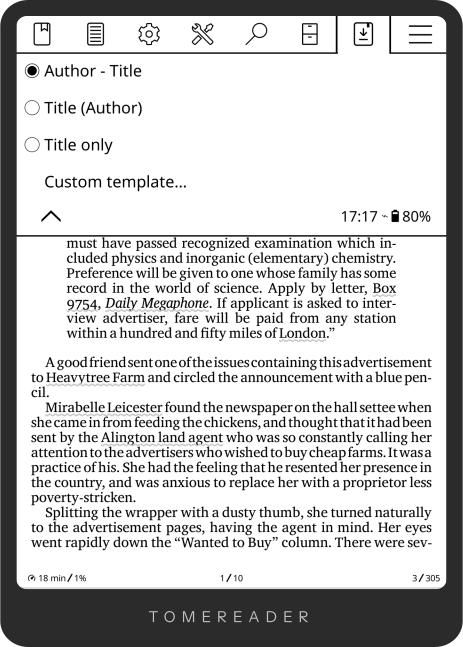
Configure in Settings → Export → File names & folders → File name template:
Author - Title(default)Title (Author)Title onlyCustom template…: build your own pattern using%A(author),%T(title),%S(series), and%i(series index).
If you change your template after exporting, Tomedown can rename existing files to match the new pattern without losing your notes.
2. Folder organization
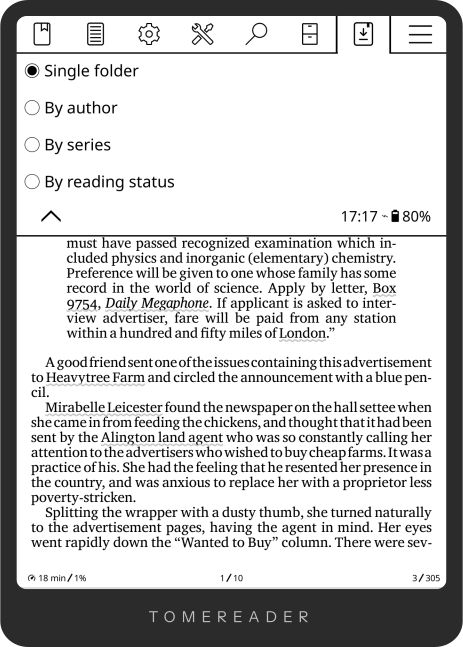
Configure in Settings → Export → File names & folders → Folder organization:
- Single folder (default): all book notes sit together in your Tomedown folder alongside
00 - Index.md. - By author: groups books into author subfolders (
Arthur Machen/The Three Impostors.md). - By series: groups multi-volume series into dedicated folders.
- By reading status: organizes books by status (
Reading,Complete,Abandoned).
3. Covers folder & Drawings folder
- Covers folder: custom folder name for extracted cover images (defaults to
covers, e.g._coversorassets, with automatic migration). Available when Book cover is enabled in Settings → Notes & highlights → Book page. - Drawings folder: custom folder name for extracted stylus sketches and vector SVG drawings (defaults to
drawings). Available when Handwritten notes is enabled in Settings → Notes & highlights.
Index & library (00 - Index.md)
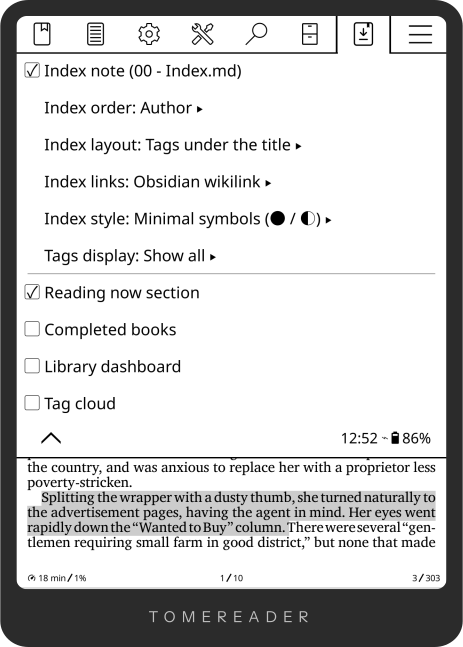
In Settings → Index & library, you can tailor the library index:
- Index note (00 - Index.md): master switch to generate the index table (on by default).
- Index order: sort by Author (default), Title, Last read (newest first), or Highlights (most first).
- Index layout: Tags under the title (default), Tags column, or Tags column, compact.
- Index links: choose Obsidian wikilink (
[[Book]]) or Standard Markdown ([Book](Book.md)) if you use another Markdown app. - Index style: tracks Book style automatically via Follow book style (on by default), or lets you pick an independent style among Minimal symbols (
● / ◐), Emoji (🟢 / 🟡), Code badges (`READING`), and Editorial (Reading). - Tags display: choose Show all (default), First 3 (+N) for a compact badge, or Collapsible ()to fold long tag lists behind an expandable dropdown.
- Reading now section: repeats currently active books in a dedicated top section.
- Completed books: generates a
### Completed bookstrophy showcase celebrating finished volumes with ratings and stats. - Library dashboard: renders a top-level reading overview table with total books, completed count, and progress.
- Tag cloud: generates an alphabetical directory of all tags with volume counts at the bottom of the index.
Top bar icon & Settings backup
- Top bar icon (Settings → App & updates → Top bar icon): adds a dedicated Tomedown icon directly in KOReader's top bar for one-tap access while reading.
- Settings export & restore (Settings → Export):
- Export settings to file: writes a portable backup of all your Tomedown options to
tomedown_settings_backup.lua. - Restore settings from backup…: restores your exact configuration from
tomedown_settings_backup.luawith a confirmation dialog. - Delete all backup copies…: inside Settings → Export → Backup copies, scans your vault and safely removes stale
.bakcopies while keeping all original notes intact.
Manage books anywhere (Long-press shortcuts)
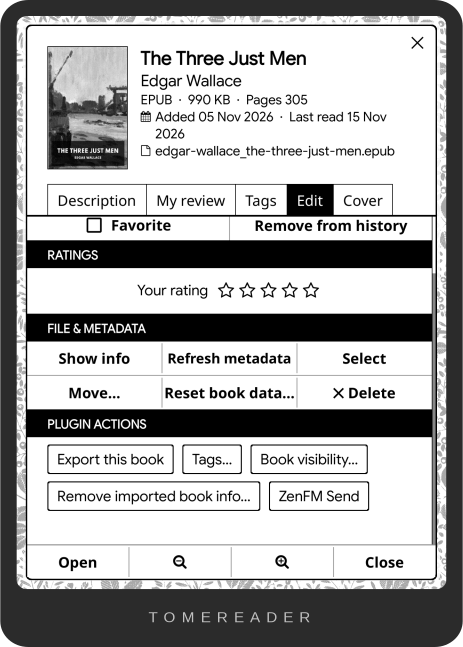
You don't need to open a book to manage how it exports. When you long-press any book in KOReader's File Manager, History, Collections, or Bookshelf, Tomedown adds direct shortcuts to the file dialog:
- Export this book: runs an immediate export for that volume without touching the rest of your library.
- Tags…: opens the tag picker and suggestion manager.
- Book visibility…: choose whether the book appears in the index, exports silently, or is excluded (
Do not export). - Import book info / Remove imported book info…: opt-in or remove extended KOReader metadata (rating, review, reading dates).