
Settings
☰ menu → Tomedown → Settings, organized into seven clear groups:
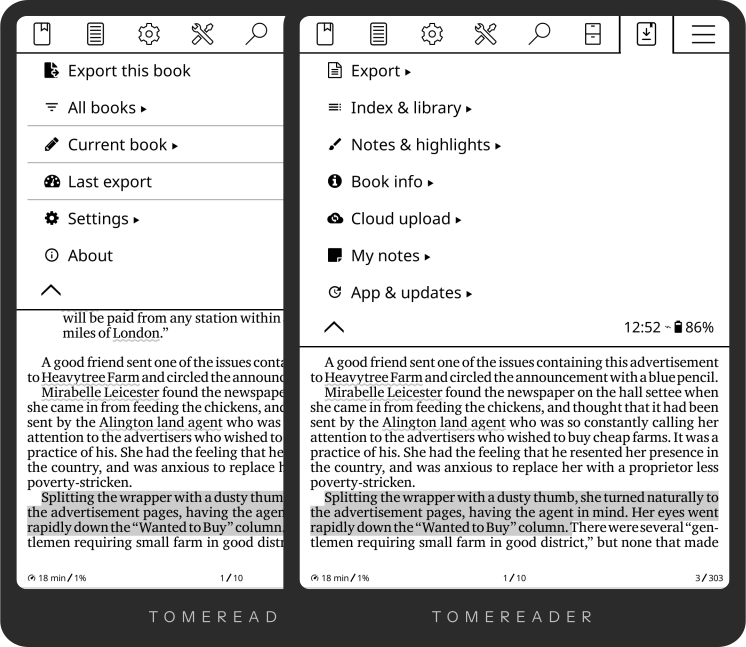
Everything here is stored in KOReader's settings and applies to every book across your library. Per-book choices, notes headings, tags, visibility, and format overrides live in the open book's menu: see Current book, Keep my notes, and File format.
Export
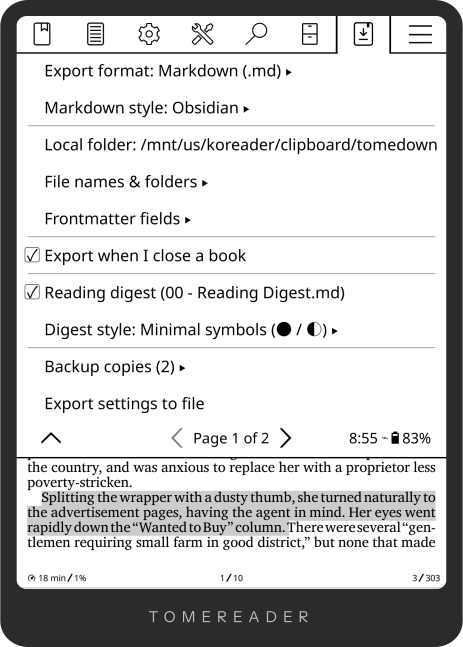
| Entry | What it does |
|---|---|
| Export format: %1 | Defaults to Markdown (.md); can be switched to Plain text (.txt) or Both (.md and .txt) to generate a clean, human-readable .txt file per book without YAML or HTML |
| Markdown style: %1 | Defaults to Obsidian (wikilinks, [!...] callouts, and ^hl- block IDs); switch to Standard (GitHub / HTML) for GFM editors (GitHub, MarkText, Typora, VS Code) with [Title](file.md) links, <details> synopses, and <img> covers, or CommonMark (no HTML) for strict zero-HTML output (Zettlr, Pandoc, Logseq, iA Writer) with  compact covers (260×390 px), ### + > synopses, and pure Markdown nested index lists. Disabled automatically when Export format is set to Plain text (.txt) (Not used with .txt) |
| Local folder: %1 | Defaults to clipboard/tomedown inside KOReader's data folder; tap to browse with KOReader's folder picker (long-press a folder to choose it) |
| File names & folders ▸ | Opens the naming and directory layout submenu: File name template (Author - Title, Title (Author), Title only, or Custom template…), Folder organization (Single folder, By author, By series, By reading status), Covers folder (defaults to covers, active when book covers are enabled; supports nested paths up to 3 levels such as assets/covers with automatic file migration), and Drawings folder (defaults to drawings, active when handwritten notes are enabled; supports nested paths up to 3 levels such as assets/drawings) |
| Frontmatter fields ▸ | Toggle YAML frontmatter on or off (Include YAML frontmatter, on by default), toggle optional keys (cover, series, language, pages, exported, highlights, special, status, progress), enable Custom fields (Custom frontmatter fields…), or set a custom key order (Frontmatter key order…). tomedown stays first and enabled at all times |
| Export when I close a book | Off by default: exports the book when you close it, and again (silently, no network) before the device suspends |
| Reading digest (00 - Reading Digest.md) | Off by default: creates a consolidated chronological digest (00 - Reading Digest.md) grouping highlights across all books by day, with literary dates (16 Nov 2026) and clean quote times (09:41). When enabled, reveals the Digest style selector right below it |
| Digest style: %1 | Shown while Reading digest is enabled: sets the visual style of 00 - Reading Digest.md via Follow book style (tracks Book style automatically, on by default) or an independent choice among Minimal symbols, Emoji, Code badges, and Editorial |
| Backup copies (%1) | Opens the backups submenu listing existing .bak copies across your library with real file dates (Saved notes · 16 Nov 26, Latest snapshot · 14 Nov 26). Includes Delete all backup copies… to clean stale copies with a single confirmation. When no backups exist, the row is disabled with None on the right |
| Export settings to file | Exports all Tomedown configuration options deterministically to tomedown_settings_backup.lua inside your local export folder |
| Restore settings from backup… | Safely restores your Tomedown configuration from tomedown_settings_backup.lua with a confirmation dialog |
Covers are always exported in full colour, whatever the device: the extraction forces colour rendering even on greyscale e-ink screens.
Index & library
| Entry | What it does |
|---|---|
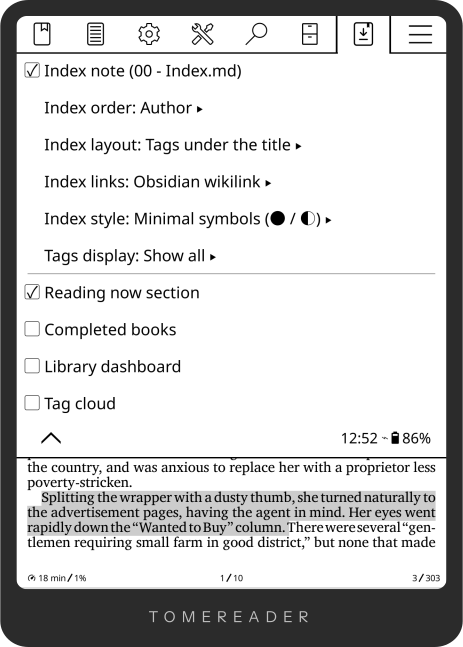
| Index note (00 - Index.md) | On by default: master switch that builds the library index tables (00 - Index.md). When turned off, dependent rows below are disabled |
| Index order: %1 | Order of the My books table: Author (default), Title, Last read, or Highlights. Last read and highlights run newest and most first, with author and title as tie-breakers; series books keep their own order by series and position. Changing it rebuilds only the index at the next export |
| Index layout: %1 | How the table carries tags and dates: Tags under the title (default: each book's tags sit under its title after a thin rule), Tags column (tags in their own column between Series and Status), or Tags column, compact (Status and Last read merged into one) |
| Index links: %1 | Format of internal links inside the index: Obsidian wikilink ([[Link\|Title]], default) or Standard Markdown ([Title](Link.md)) |
| Index style: %1 | Visual style for status indicators, headings, and metrics in 00 - Index.md: includes Follow book style (tracks Book style automatically, on by default) or an independent choice among Minimal symbols (● / ◐), Emoji (🟢 / 🟡), Code badges (`READING`), and Editorial (Reading) |
| Tags display: %1 | How tags appear in the index: Show all (default), First 3 (+N) (shows the first 3 tags with a compact badge for remaining tags), or Collapsible ( ) (folds all tags behind an expandable dropdown) |
| Reading now section | On by default: repeats books currently being read in a Reading now section above the full table, latest opening first |
| Completed books | Off by default: adds a trophy showcase section (### Completed books) highlighting finished volumes with stars and reading metrics |
| Library dashboard | Off by default: renders a high-level library summary table with total books, completed count, and overall reading progress |
| Tag cloud | Off by default: generates an alphabetical tag cloud section at the bottom of the index with occurrence counts for each tag |
Changing any option in Index & library marks the index as stale, so the next export rebuilds 00 - Index.md alone even when every book is unchanged.
Notes & highlights
| Entry | What it does |
|---|---|
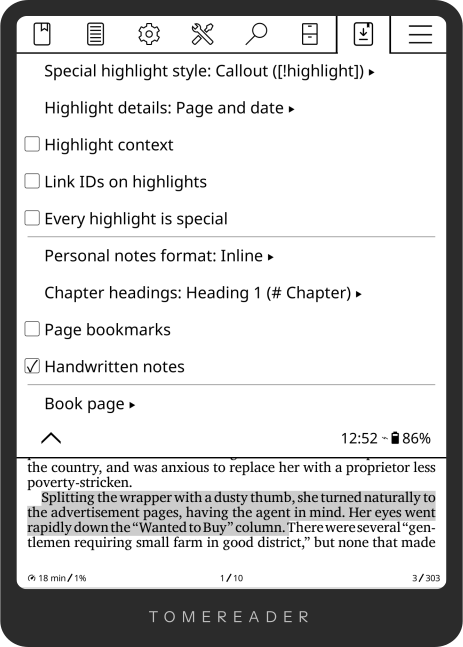
| Special highlight style: %1 | Visual style for marked highlights: Callout ([!highlight]), Alert ([!IMPORTANT]), Highlight (==text==), Highlight & Bold (==**text**==), Star & Bold (⭐ **text**), or Bold (**text**) |
| Highlight details: %1 | Defaults to Page and date (- **p. 15** · 16 Nov 2026 \| 10:20); can be set to Page only, Date only, or None |
| Highlight context | Off by default: on reflowable books (EPUB, FB2, MOBI…), extracts surrounding words and renders a - **Context:** *…* line below the quote |
| Link IDs on highlights | Off by default: writes a stable ^hl-xxxxxxxx ID at the end of every quote so Obsidian can link to or transclude a single highlight (available when Markdown style is Obsidian) |
| Every highlight is special | Off by default: renders every highlight using your chosen special highlight style |
| Personal notes format: %1 | Inline (smart indented bullet under the quote: italic for brief plain notes, clean roman text with preserved sub-lists and Markdown for rich/multi-line notes, default), Callout ([!note]) (renders personal notes inside a dedicated > [!note] callout in Obsidian), or Footnotes (appends notes as numbered Markdown footnotes [^1] at the end of the file) |
| Chapter headings: %1 | Defaults to Heading 1 (# Chapter); can be set to Heading 2 (## Chapter), Heading 3 (### Chapter), or None (continuous list) |
| Page bookmarks | Off by default: adds a # Page bookmarks section (bookmarked page + note) after the highlights |
| Handwritten notes | On by default: extracts stylus/pencil drawings from .sdr folders, renders them as pure vector SVG or PNG images into drawings/, and embeds them into your Markdown notes |
| Book page ▸ | Opens the submenu for the book note header and visual modules (see Book page & Section styles below) |
Book page & Section styles
Inside Settings → Notes & highlights → Book page:
| Entry | What it does |
|---|---|
| Book title in body | On by default: adds # Book Title H1 and ### by Author · *Series (#N)* H3 at the start of the notes body |
| Book cover image | Off by default: exports every cover into covers/ (or your custom folder configured in Export → File names & folders) and embeds it in the book file and in the index. Requires Obsidian 1.8.1 or newer |
| Overview style: %1 | Appearance of the highlights recap: Inline / Heading (### **14 highlights · ★ 2 special**, default), Classic blockquote (> **...**), Callout ([!summary]) (> [!summary] Overview), or Table (compact Markdown table) |
| Reading dashboard | Off by default: renders a header dashboard with Reading Status, Star Rating, Reading dates (10 Nov 2026 → 16 Nov 2026), and a link back to 00 - Index.md |
| Book synopsis | Off by default: embeds the EPUB description into the note header |
| Synopsis display: %1 | Collapsed (foldable) (default), Short preview (~300 chars), Collapsed + Short preview, or Expanded (full text); enabled when Book synopsis is turned on. In CommonMark (no HTML) mode, foldable choices automatically adapt to Expanded or Short preview |
| Tags in body | Off by default: appends hashtags (#tag1 #tag2) below the book header for quick tag filtering |
| Special highlights showcase | Off by default: places a showcase block of your starred passages at the top of the note |
| Section styles ▸ | Opens the visual style submenu containing Harmonize book styles (master switch to unify all header modules under Book style: Minimal symbols, Emoji, Code badges, or Editorial) or individual selectors (Dashboard style, Synopsis style, Tags style, Showcase style) when harmonization is off |
You can override any of these formatting and book page options for a single book without changing global settings via Tomedown → Current book → Format & layout. See Current book for complete details.
Last export dashboard (Tomedown → Last export)
Tapping Last export in the main Tomedown menu opens a rounded e-ink dashboard card summarizing your library sync status:
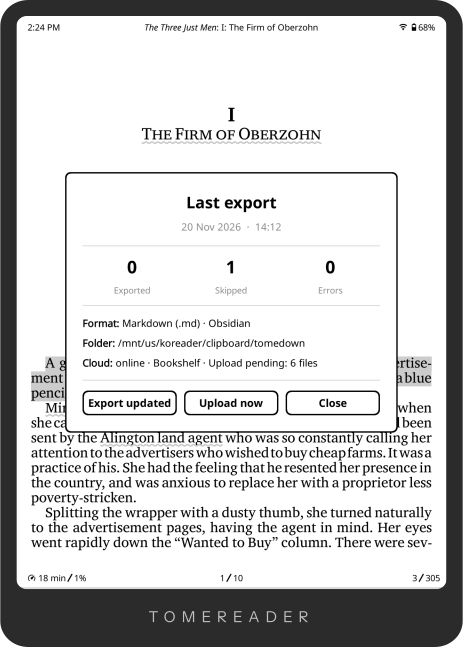
The card displays: - Timestamp: The date and time of the last export run. - 3-Column KPI Bar: - Exported: Number of book files written or updated during the last run. - Skipped: Files that were identical on disk and did not need rewrites. - Errors / Backups: Count of sync errors or safety snapshots created. - Active configuration: Shows the active export format and Markdown style, plus the local destination folder. - Recent titles: A preview list of the most recently exported books. - Cloud status: Shows whether WebDAV, Dropbox, or Nextcloud sync is connected and idle. - Action Buttons: - Export updated: Scans your reading history and exports only changed books. - Upload now: Triggers an immediate cloud synchronization pass. - Close: Closes the dashboard and returns to KOReader.
Book info
| Entry | What it does |
|---|---|
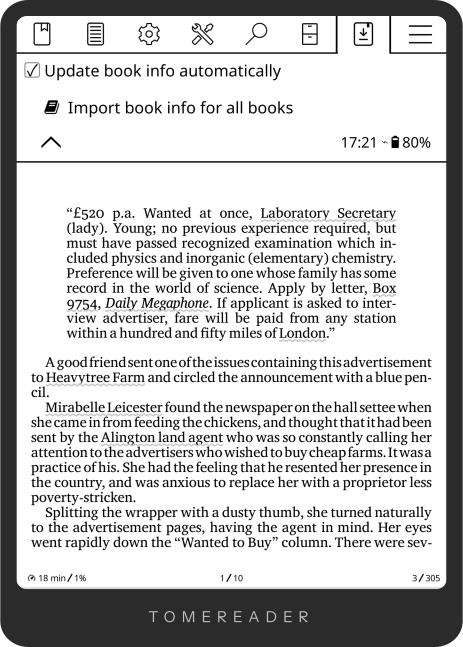
| Update book info automatically | On by default: once a book has been imported, a change to its rating, review, status, tags, collections, or dates rewrites that one note about two seconds later. Off, the fields wait for the next normal export |
| Import book info for all books… | Asks first, then imports every book KOReader has opened except the ones set to Do not export, and writes only the imported books |
The import itself is always explicit: Current book → Book info → Import book info for the open book, or the same row on a long-press in the file browser, History, or Bookshelf.
Cloud upload
| Entry | What it does |
|---|---|
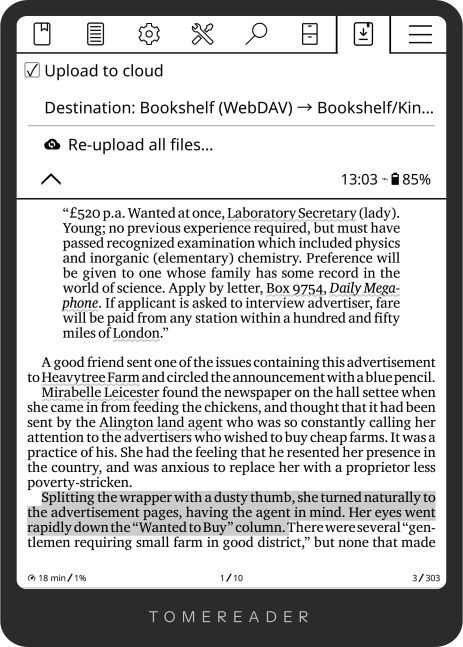
| Upload to cloud | Any WebDAV, Dropbox, or FTP server works; off on a fresh install (local-first) |
| Destination: %1 ▸ | Unified cloud target submenu showing the current server and path (or Not set on the right). Inside: Choose in cloud storage… (opens KOReader's cloud browser), Enter remote path… (manual folder override, e.g. /Bookshelf/Kindle), and Clear remote path… (shown when a manual remote path is set) |
| Re-upload all files… | Confirms and re-uploads all local notes, index, covers, and drawings to the configured cloud destination |
My notes
| Entry | What it does |
|---|---|
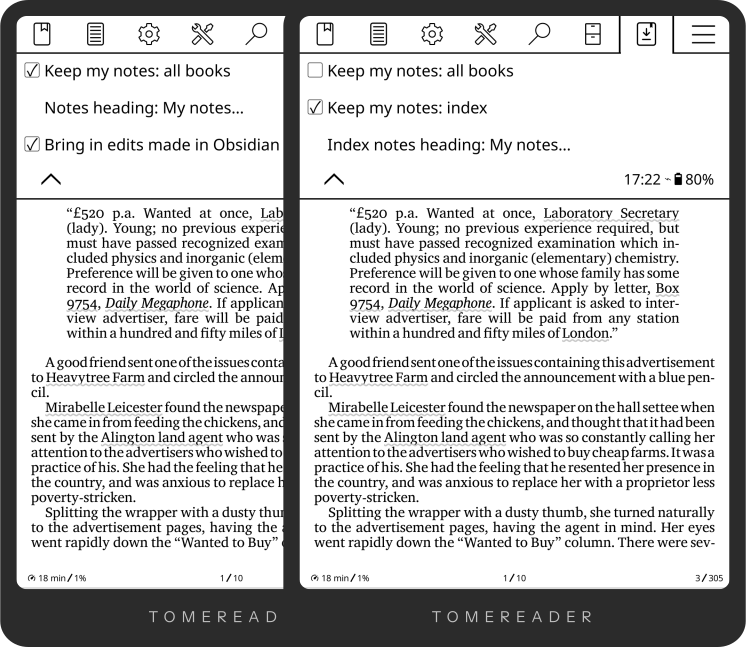
| Keep my notes for all books | Off by default. Switch it on and every export folds the new render into your file, keeping your personal write zones; while it is on, it governs all books and the index, and Keep my notes in the index shows On for all books on the right (see Keep my notes) |
| Keep my notes in the index | The same switch for 00 - Index.md alone. When Keep my notes for all books is on, this row is disabled with On for all books on the right |
| Notes heading: %1 | The heading above your notes block, shown while Keep my notes for all books is on. Tap to rename; empty means no heading |
| Index notes heading: %1 | The heading of the index write zone, shown while Keep my notes in the index is on and Keep my notes for all books is off |
| Bring in edits made in Obsidian | On by default (shown when a cloud server is configured, Upload to cloud is on, and Keep my notes for all books is on). Before folding new highlights in, the export fetches the cloud copy and uses it as the base when it changed since the last upload |
App & updates
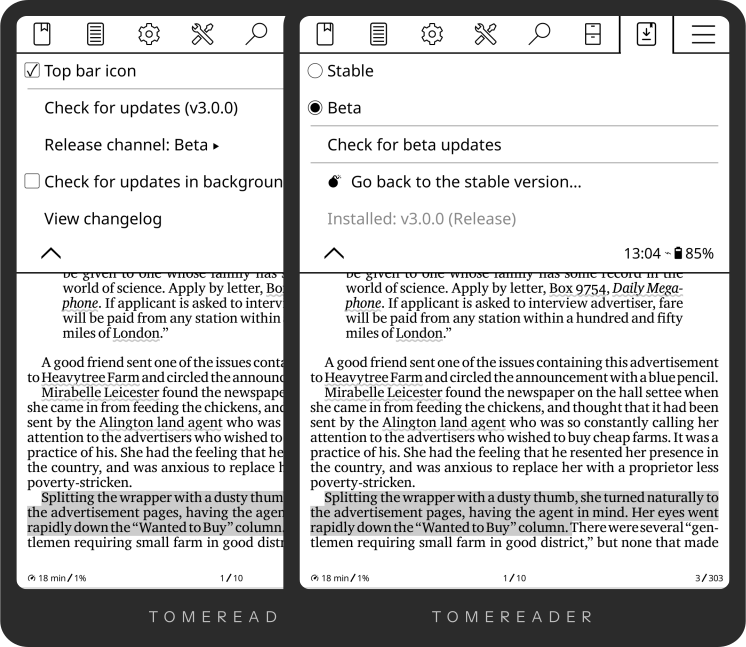
| Entry | What it does |
|---|---|
| Top bar icon | On by default: places the dedicated Tomedown icon directly in KOReader's top navigation bar |
| Check for updates (vX) | Doubles as the version display: checks GitHub for newer stable releases, shows their notes, and can install the update right away (Update and restart) |
| Release channel: %1 ▸ | Opens the release channel submenu (Stable or Beta radio buttons, plus beta update check and rollback controls below) |
| Check for updates in background | Off by default: runs a quiet check when KOReader starts and when the menu opens (at most once an hour) and notifies you of a new stable release |
| View changelog | Pages through the release notes of every version on GitHub, newest first (cached for offline reading, with Refresh) |
Release channel
| Entry | What it does |
|---|---|
| Stable | Default radio option: receives tested stable releases |
| Beta | Radio option: enables the beta channel (vX.Y.Z-beta.N), reveals Check for beta updates below, and includes prereleases in the changelog |
| Check for beta updates | Visible while Beta is selected: checks GitHub for newer prereleases and installs them |
| Go back to the stable version… | Installs the newest stable release even when your current install is a newer beta, and switches the release channel back to Stable |
| Installed: vX (Release/Beta) | Informational label showing the currently active plugin build |
If you already use AnnotationSync
The cloud server is inherited automatically from the one AnnotationSync already saved in KOReader (Cloud settings): Settings → Cloud upload → Destination shows it automatically. If AnnotationSync uploads its .json files somewhere other than where you want your .md notes, tap Destination → Enter remote path… and type the target folder (for example /Bookshelf/Kindle).
The plugin never touches AnnotationSync's files (<md5>.json, settings_sync.json): it only reads the .sdr folders.