
Highlight Styles & Frontmatter
Tomedown works with Obsidian, GitHub, Logseq, or any plain text viewer. Highlight and note formatting options live in Tomedown → Settings → Notes & highlights, frontmatter configuration lives in Settings → Export → Frontmatter fields, and you can override any of them for a single book in Current book → Format & layout.
6 Special highlight styles
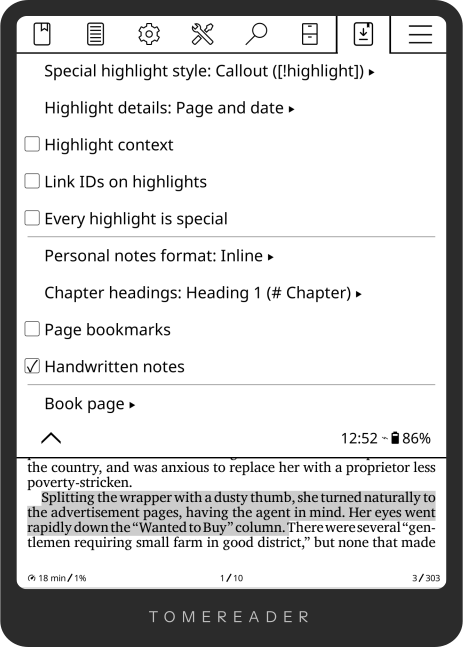
Flag standout quotes with Special Highlight when selecting text in KOReader. In Settings → Notes & highlights → Special highlight style, choose:
- Callout (
[!highlight]): Obsidian callout block. - Alert (
[!IMPORTANT]): GitHub-flavored alert box. - Highlight (
==text==): standard Markdown highlight. - Highlight & Bold (
==**text**==): highlighted and bold. - Star & Bold (
⭐ **text**): star badge next to bold text. - Bold (
**text**): clean bold text that works everywhere.
Enable Every highlight is special in Settings → Notes & highlights if you want all highlights to use your chosen style automatically.
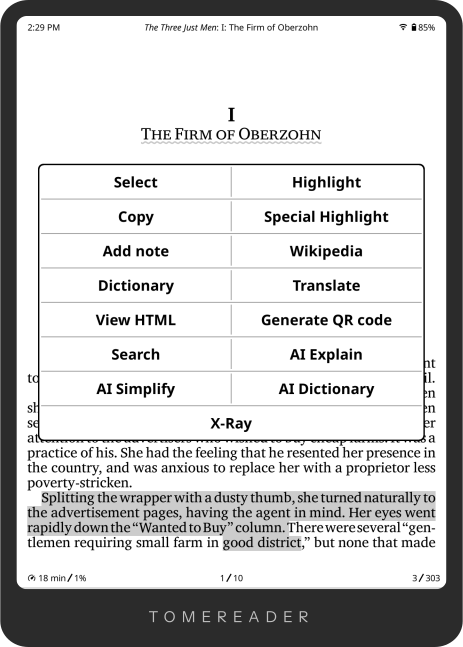
Promote or remove a Special Highlight anytime
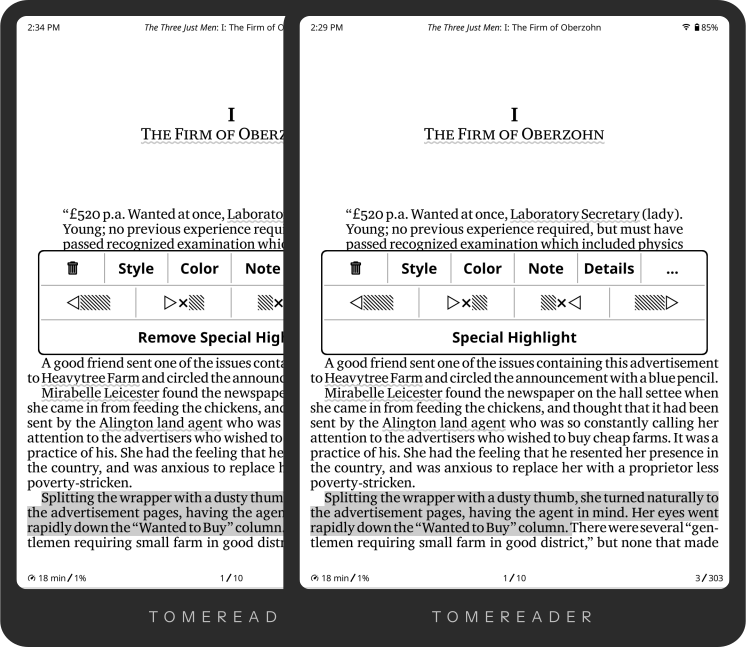
You are never locked into your initial choice while reading. Tap any existing highlight on the page in KOReader to toggle its starred status right from the highlight popup:
- Make special: promotes a normal highlight into a ★ Special Highlight so it adopts your chosen highlight style and appears in the Special highlights showcase.
- Remove special: converts a starred passage back into a standard highlight while keeping the quote and any attached personal note intact.
“She had the feeling that he resented her presence in the country, and was anxious to replace her with a proprietor less poverty-stricken.”
“She had the feeling that he resented her presence in the country, and was anxious to replace her with a proprietor less poverty-stricken.”
She had the feeling that he resented her presence in the country, and was anxious to replace her with a proprietor less poverty-stricken.
She had the feeling that he resented her presence in the country, and was anxious to replace her with a proprietor less poverty-stricken.
She had the feeling that he resented her presence in the country, and was anxious to replace her with a proprietor less poverty-stricken.
She had the feeling that he resented her presence in the country, and was anxious to replace her with a proprietor less poverty-stricken.
Notes & highlights menu overview
All formatting controls for highlights, personal notes, chapter headings, page bookmarks, handwritten drawings, and book page modules are organized under Settings → Notes & highlights in KOReader:
Book page & Section styles
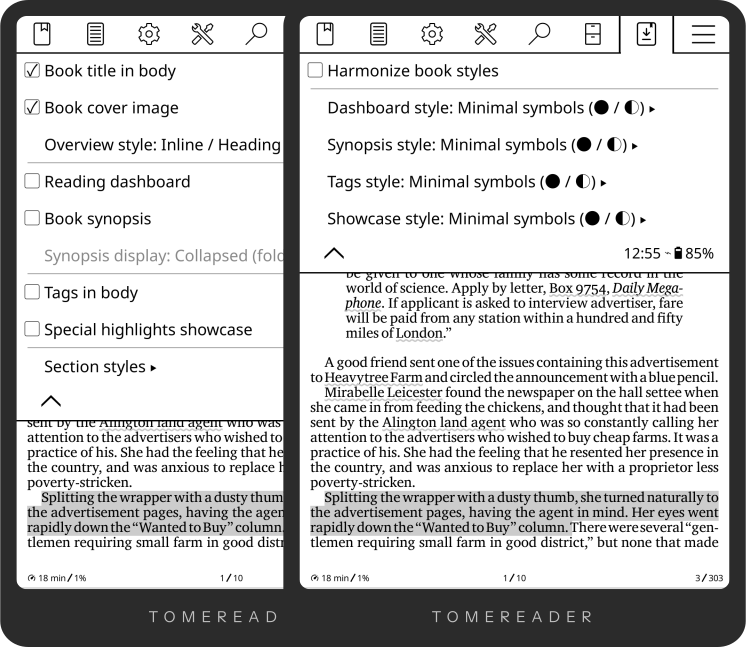
In Settings → Notes & highlights → Book page, you can configure the header layout and rich visual sections of every exported book note:
- Book title in body: includes
# Book TitleH1 and### by Author · *Series (#N)*H3 at the start of the body. - Book cover: extracts the book's full-color cover into
covers/and embeds it at the top of the book note and in00 - Index.md. - Overview style: pick how the highlights count and star metrics look:
- Inline / Heading:
### **14 highlights · ★ 2 special**(default). - Classic blockquote:
> **14 highlights · ★ 2 special**. - Callout ([!summary]):
> [!summary] Overviewbox. - Table: compact Markdown summary table.
- Reading dashboard: embeds a
> [!book]dashboard at the top of the note with Status, 5-star Rating, Reading dates (10 Nov 2026 → 16 Nov 2026), and a link back to00 - Index.md. - Book synopsis & Synopsis display: extracts the EPUB description into a
> [!abstract]- Synopsissection (Collapsed by default, or Expanded). - Tags in body: appends
#tag1 #tag2clickable hashtags directly below the header. - Special highlights showcase: generates a collapsible
> [!highlight]- ★ Special highlights (N)section showcasing your starred quotes at the top. - Section styles ▸: opens the dedicated visual style submenu:
- Harmonize book styles: master toggle to apply a single unified visual style (Book style: Minimal symbols, Emoji, Code badges, or Editorial) across your book modules,
00 - Index.md, and00 - Reading Digest.md. - When Harmonize book styles is off, you can configure Dashboard style, Synopsis style, Tags style, and Showcase style individually.
Handwritten notes & Stylus drawings
If your device supports a stylus (e.g. Kindle Scribe, Kobo Sage/Elipsa, Android e-ink, or via KOReader's pencil.koplugin), Tomedown extracts handwritten annotations from your .sdr directory when Settings → Notes & highlights → Handwritten notes is enabled:
- Point-sequence pen strokes are converted to crisp SVG vector files.
- Drawings are saved into the
drawings/folder inside your vault (customizable via Settings → Export → File names & folders → Drawings folder). - Drawings are embedded with standard Markdown syntax (
) and receive permanent block IDs (^hl-xxxxxxxx).
Personal notes format, details, chapters & context
In Settings → Notes & highlights:
- Personal notes format: choose Inline (default: italic for brief plain notes, clean roman text with preserved sub-lists and Markdown for rich/multi-line notes), Callout (
[!note]) (dedicated note callout below the quote in Obsidian), or Footnotes (collected as[^1]at the end of the file). - Highlight details: choose Page and date (
- **p. 15** · 16 Nov 2026 | 10:20), Page only, Date only, or None. - Chapter headings: choose Heading 1 (
#), Heading 2 (##), Heading 3 (###), or None (continuous list). - Highlight context: on reflowable books (EPUB, FB2, MOBI…), extracts the words right before and after your highlight and adds a
- **Context:** *…*line below the quote. - Link IDs on highlights: appends a stable
^hl-xxxxxxxxblock ID at the end of each quote so Obsidian can link to or embed a single highlight.
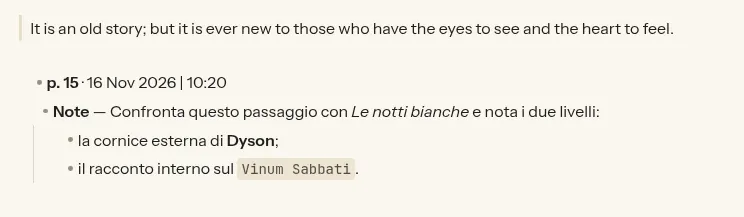
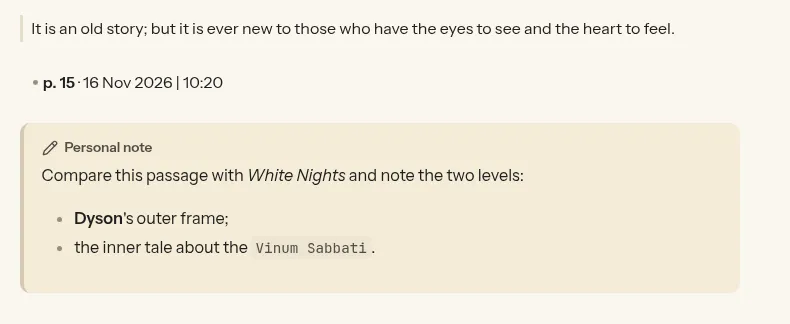
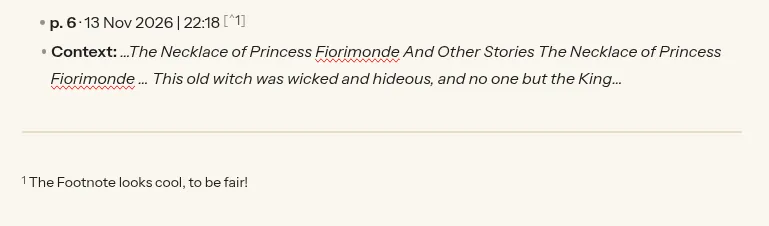
[^1] footnotes.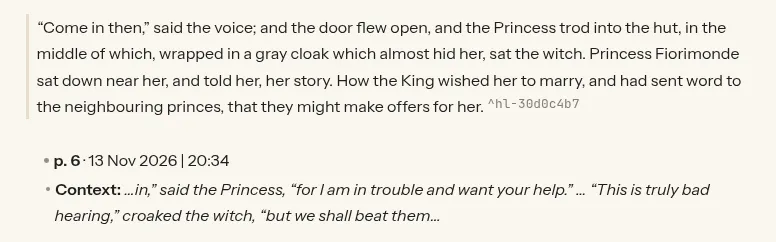
- **Context:** *…*.Frontmatter fields & custom properties
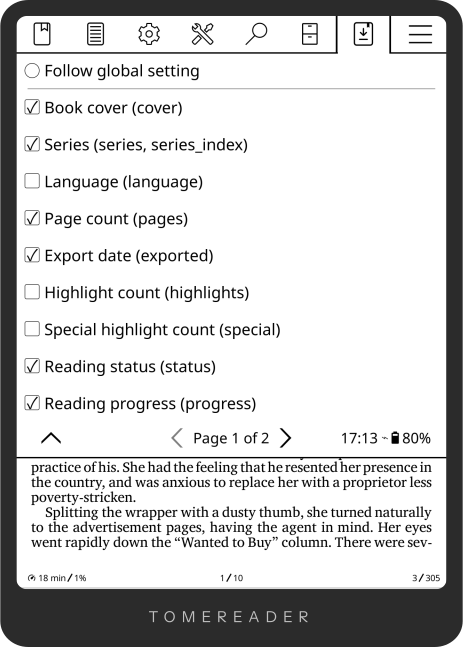
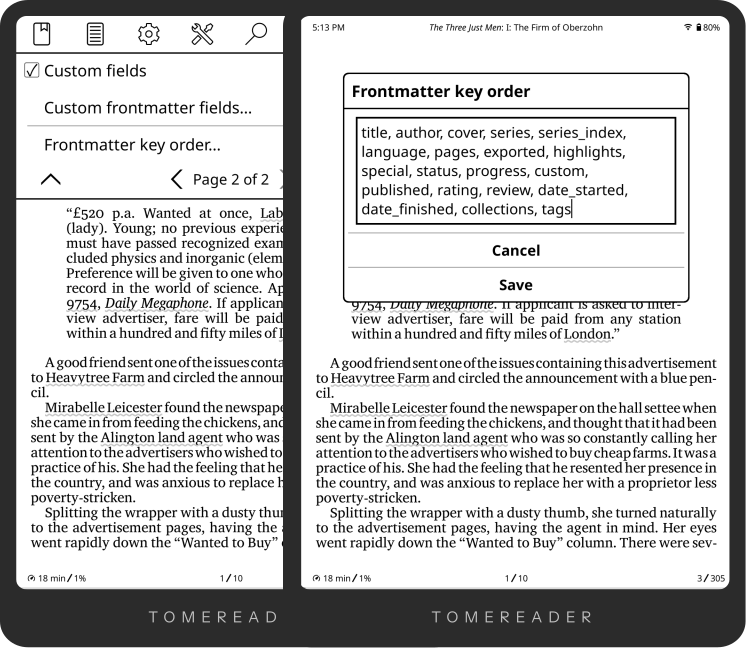
In Settings → Export → Frontmatter fields, you can:
- Toggle YAML frontmatter on or off (Include YAML frontmatter).
- Show or hide individual fields (
cover,series,language,pages,exported,highlights,special,status,progress). - Enable Custom fields and tap Custom frontmatter fields… to add your own
key: valueproperties (e.g.type: bookorvault: reading). - Set a Frontmatter key order… (comma-separated list of keys).
Per-book overrides
Inside an open book, go to Tomedown → Current book → Format & layout to override any formatting option (Export format, Markdown style, Notes & highlights, Book page, Section styles, or YAML frontmatter) for that book only—every option defaults to Follow global setting. Tap Reset to global style settings anytime to return to your library defaults.