Getting Started (Local-First)
You do not need a cloud account or Obsidian to use Tomedown. Everything works offline on your e-reader first.
1. Install the plugin
Wireless (straight on your e-reader):
Storefront
Wireless
Open Storefront in KOReader, search Tomedown, and tap Install.
AppStore
Wireless
Browse AppStore on your device, pick Tomedown, and restart KOReader.
Or via USB cable:
- Connect your e-reader to your computer via USB.
- Download
tomedown.koplugin-v*.zipfrom the GitHub Releases page (or from Download). - Unzip it into your KOReader
plugins/folder (for example/mnt/us/koreader/plugins/on Kindle). The zip already contains thetomedown.koplugin/folder. - Eject and restart KOReader (or enable Tomedown in ☰ → Plugin management).
2. Run your first export
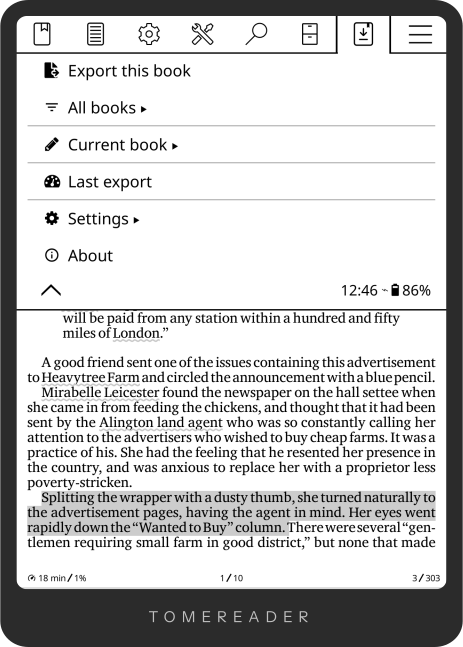
- Open ☰ → Tomedown (or tap the dedicated Tomedown icon in the top bar).
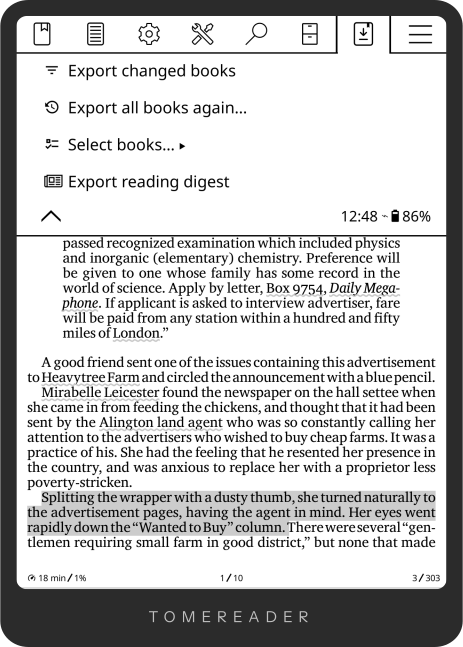
- On a fresh install, Tomedown offers to export your entire reading history in one tap. You can also use Export this book for the open volume, or open All books ▸ for library-wide actions:
- Export changed books: exports books where highlights, progress, or tags were added or updated.
- Export all books again…: regenerates every note cleanly from KOReader's reading history.
- Select books…: opens an interactive multi-selection checklist to tick which books you want to export.
- Export reading digest: compiles
00 - Reading Digest.mdacross your library.
- Your notes are written immediately to your device:
koreader/clipboard/tomedown/
├── 00 - Index.md
├── Arthur Machen - The Three Impostors.md
└── ...
Tip: Enable Settings → Export → Export when I close a book if you want Tomedown to update the file automatically whenever you close a book or put your device to sleep. You can also long-press any book in KOReader's File Manager, History, or Bookshelf to export or manage its tags directly.
3. Read or sync (when you're ready)
- Offline / USB: copy the
tomedown/folder to your computer whenever you want. Every file is plain Markdown (.md) or plain text (.txt). - Cloud & Obsidian (optional): if you want automatic wireless sync to an Obsidian vault, see the Obsidian guide and Setup tutorial.