
Obsidian guide: your notes inside the vault
A visual guide to how exported books, reading progress, and index tables look and function inside an Obsidian vault.
For full technical specifications of the generated Markdown, YAML properties, and index tables, see the File format & specifications page.
The book note in Obsidian
Every exported book note is a self-contained Markdown file ready for Obsidian.
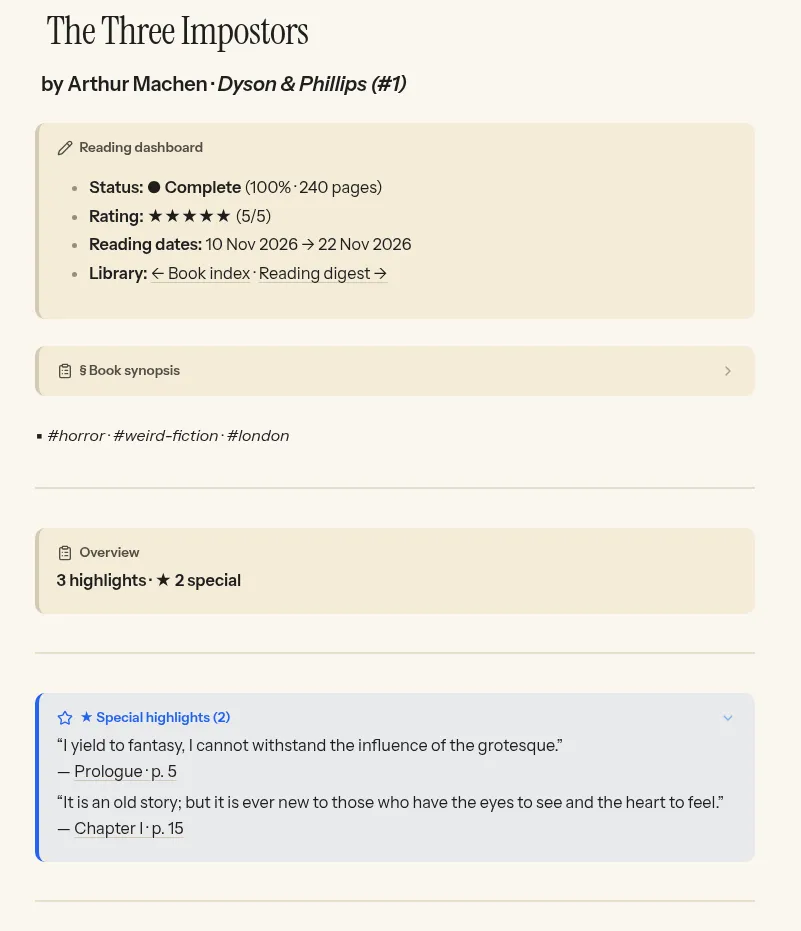
- Reading View vs. Live Preview: in Reading View, YAML frontmatter renders cleanly as Obsidian Properties, and internal Tomedown hashes stay out of sight.
- Embedded Covers: when Settings → Notes & highlights → Book page → Book cover is enabled, covers are stored in your vault folder (default
covers/, configurable in Settings → Export → File names & folders) and render natively in Obsidian (requires Obsidian 1.8.1 or newer). - Wikilinks: internal references connect book titles directly across your notes.
Personal notes with Keep my notes
Enable Tomedown → Settings → My notes → Keep my notes for all books (or per book in Tomedown → Current book → Keep my notes in this book) to turn exported files into shared workspaces.
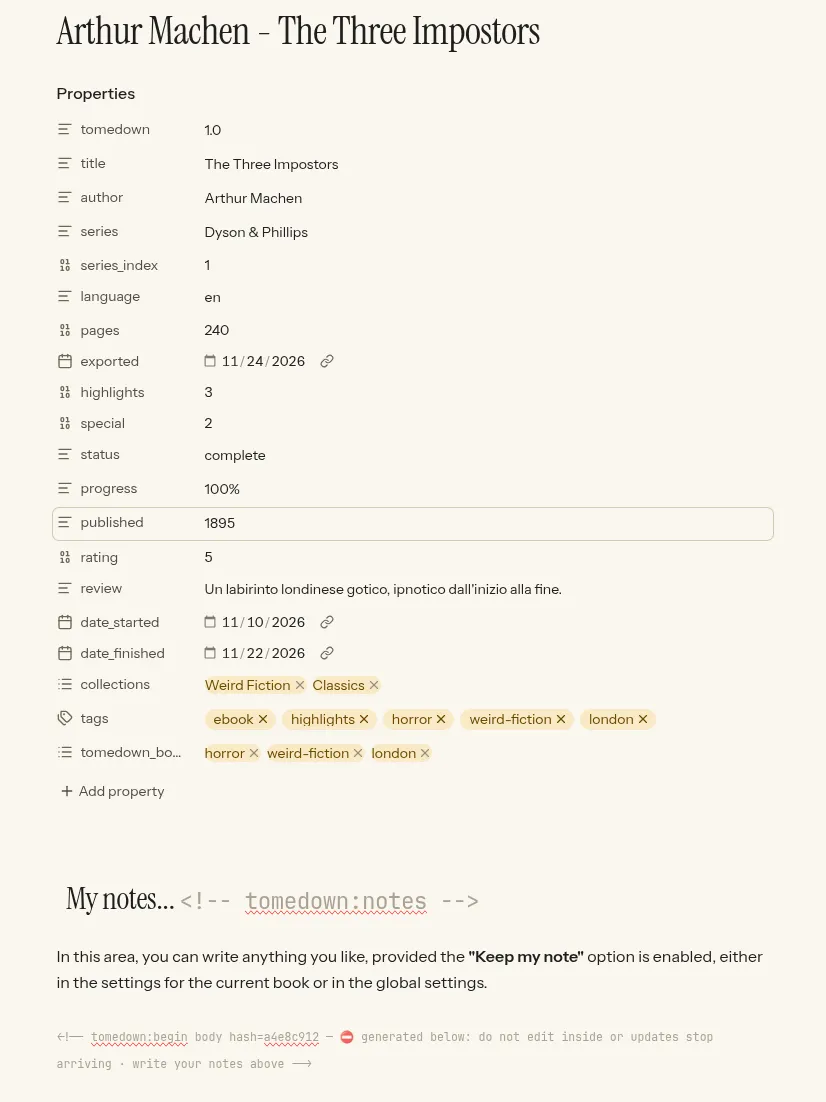
## My notes... survive every export — the boundary marker protects your writing.- Write freely: write reflections, permanent notes, and synthesis directly under the
## My notes...section. - Resilient merging: when you take new highlights on your e-reader, Tomedown folds them into the generated section below without touching a single word of your manual notes.
- Safety copies: if content inside the generated block is ever altered unexpectedly, Tomedown creates a
.bakbackup copy before merging. For a complete deep dive, see Keep my notes.
The Library Index (00 - Index.md)
00 - Index.md acts as your personal bookshelf dashboard in Obsidian.
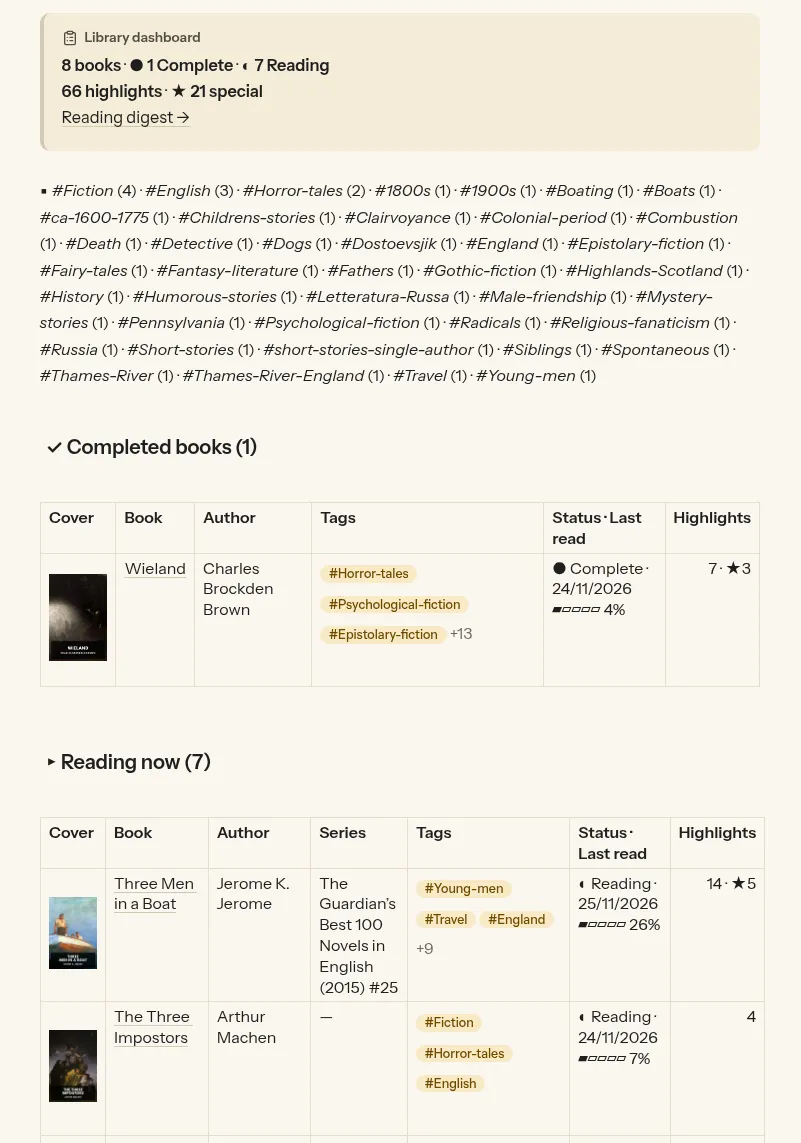
00 - Index.md in Obsidian: Library dashboard, Tag cloud, and Completed books trophy room.- Interactive table: click any book title or cover to navigate straight to that book note.
- Visual reading progress: 5-cell Unicode indicators (
▰▰▰▰▰) display exact completion percentages without breaking columns. - Stacked tag pills: subject tags stack vertically as clean pills, preventing table widening.
- Customizable views: choose between Tags under the title, Tags column, or Tags column, compact in Settings → Index & library → Index layout.
Reading Digest (00 - Reading Digest.md)
A consolidated chronological reading journal grouping all highlights across your whole library by day:
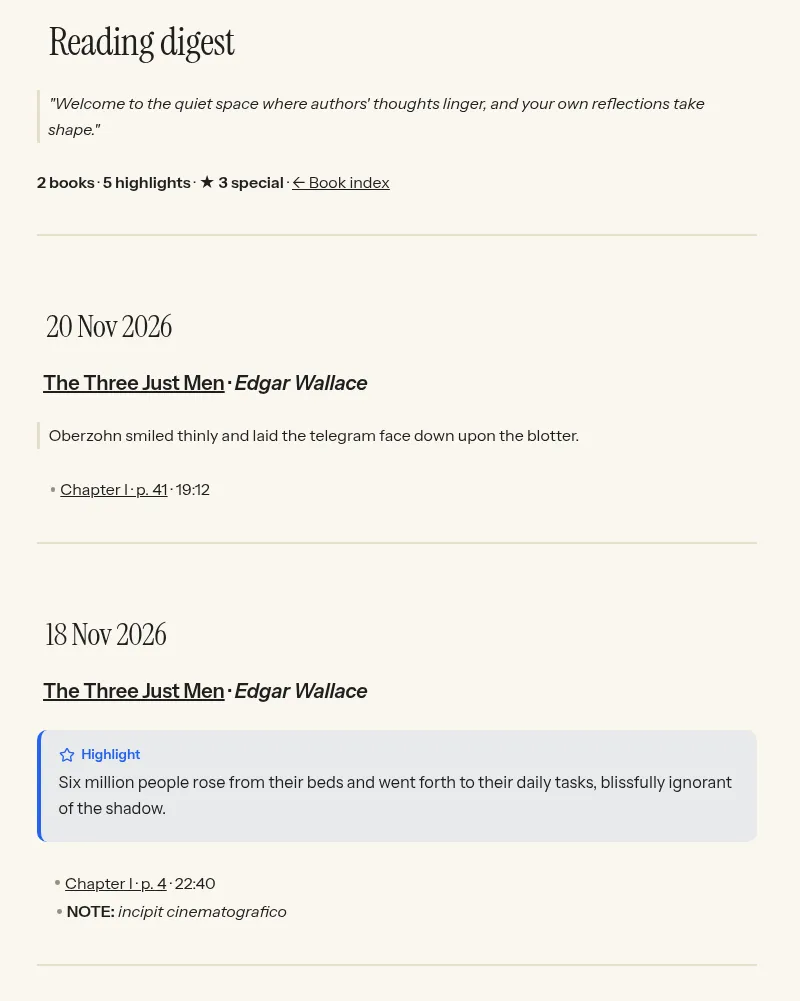
00 - Reading Digest.md in Obsidian: literary day headings, thin book dividers, and clean quote times.Handwritten notes & Stylus drawings
For stylus devices, handwritten notes are rendered as pure SVG vector strokes or PNGs in drawings/ and embedded seamlessly inside your book notes when Settings → Notes & highlights → Handwritten notes is enabled.
Link to a single highlight
Enable Settings → Notes & highlights → Link IDs on highlights to attach stable block IDs (^hl-xxxxxxxx) to every quote:
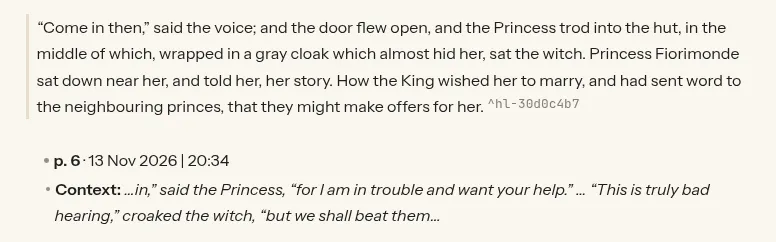
^hl-xxxxxxxx block ID for direct deep linking and transclusion in Obsidian.Because block IDs are tied to quote hashes, they persist across future re-exports:
- Jump to a highlight:
[[Book title#^hl-dfd750fa]]opens the note directly focused on that quote. - Transclude anywhere:
![[Book title#^hl-dfd750fa]]embeds the quote live into any other note or daily journal in your vault.
Syncing with your vault
To sync notes automatically between your e-reader and Obsidian on computer or mobile:
- Follow the step-by-step Setup tutorial (Koofr & Remotely Save) to connect via WebDAV.
- Read Sync direction guide to understand how bidirectional sync keeps your notes safe.
- README: installation, the menu, settings and file format.